After completing this lesson, you’ll be able to:
In this lesson, you will:
After completing this lesson, you’ll be able to:
In this lesson, you will:
The Data Download service is one of the common FME Flow transformation services. The service allows you to download a workspace's output data after the workspace finishes running on FME Flow. Instead of writing the data to the location you set in the Writer, FME Flow packages the data into a zipped file and presents it to the user via a URL that links to the download. FME Flow uses a zip file to include multiple datasets in the output results and accommodate folder-based datasets containing multiple files.
When authoring the workspace in FME Workbench, you can specify and control which datasets to include in the results, the format of the data, and which coordinate system the data uses.
It is not possible to execute a data download on a workspace whose output destination is a database format. Data download can only be used with workspaces that write single or multiple files.
You can set and edit transformation services for a workspace directly in FME Flow or when publishing the workspace from FME Workbench.
When you publish to FME Flow from FME Workbench, you register the services for the workspace in the last step of the publishing process. To change a workspace's services from FME Workbench, you must complete the entire publishing process again; republishing a workspace does not alter the services from the settings used when you first published the workspace.
For workspaces already published to FME Flow, you may modify the services directly on FME Flow, which is easier than going through the entire publishing process again in FME Workbench. However, for the Data Download service, you can only edit the folder path structure of the data in the zipped folder when publishing.
By default, the data download folder structure in the zip file separates datasets by writer format as folder names. You may alter the Data Download zip file folder structure when publishing from FME Workbench.
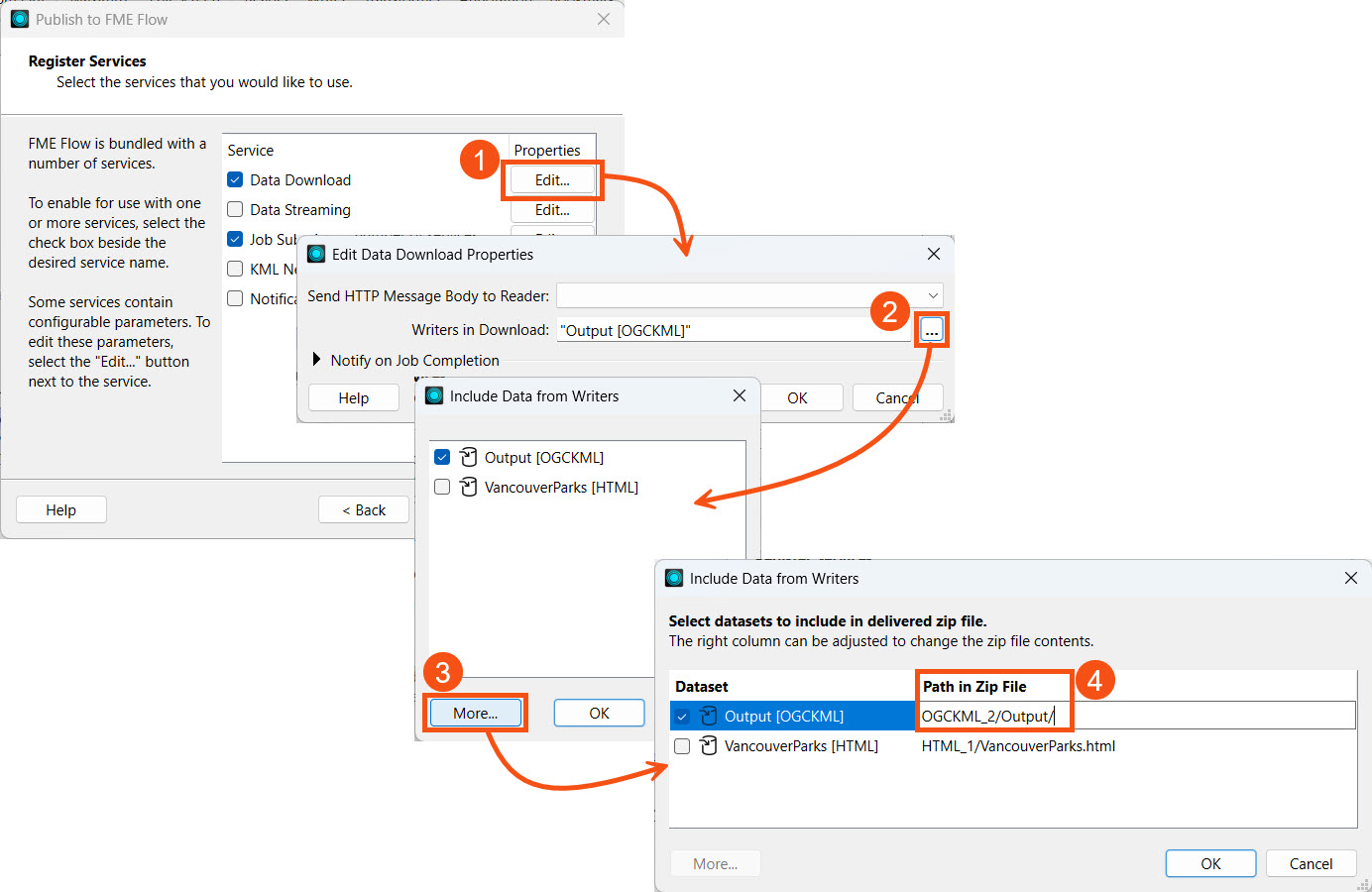
Currently FME Flow does not support the ability to alter the data download folder structure from FME Flow and it must be done while publishing from FME Workbench.

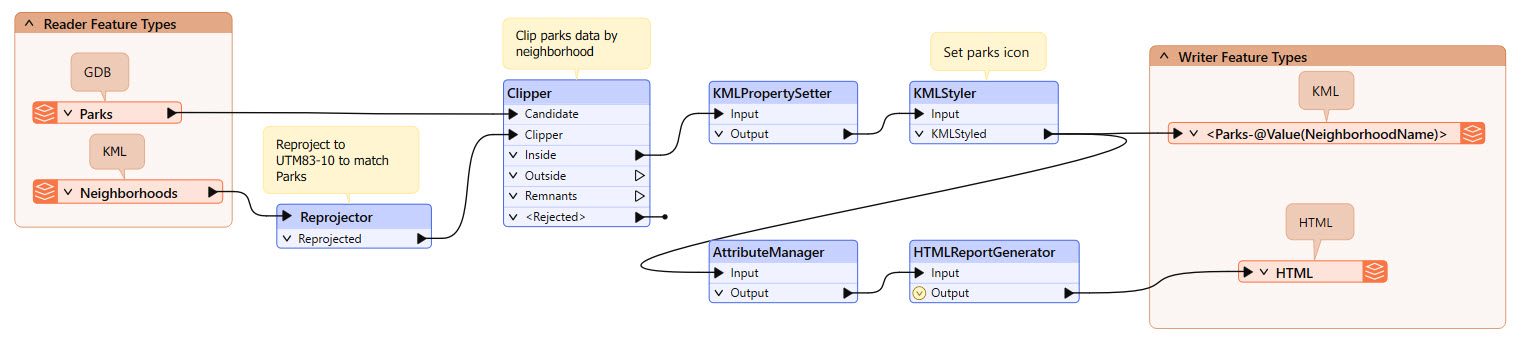
Sven continues with his workspace, which filters Park data by neighborhood in Vancouver and produces KML output of Parks by neighborhood and an HTML summary report of the Parks. Sven recently learned about the Data Download service on FME Flow and thinks it will benefit his colleagues to access the Parks data output using his workspace.
He wants to publish his workspace again, register it with the Data Download service, and customize the path to the output zip file.
For this exercise, follow the steps below to configure Sven's workspace to use the Data Download service with a custom output zip file path and then run it on FME Flow.
Return to Sven's workspace in FME Workbench (C:\FMEData\Workspaces\DeployWorkflowsWithFMEFlow\publish-a-workspace-to-fme-flow.fmw).
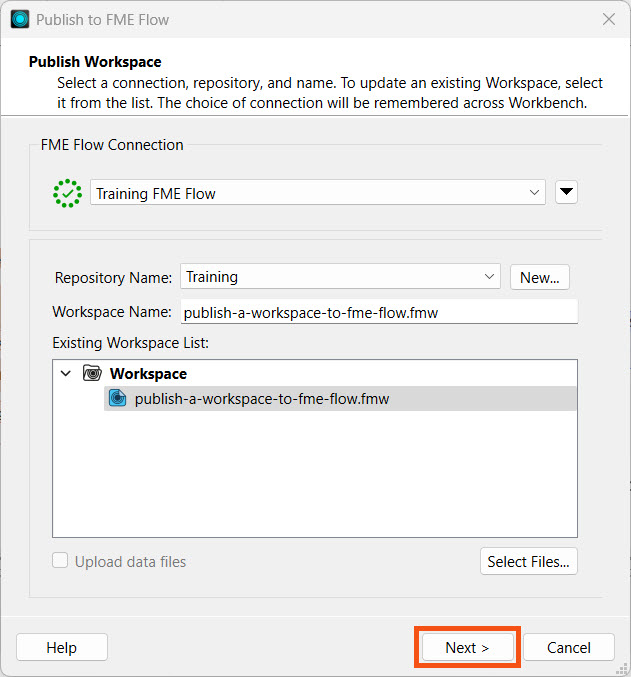
Click Publish on the top toolbar to open the publishing wizard. Select the Training repository, and optionally change the workspace name, and click Next.
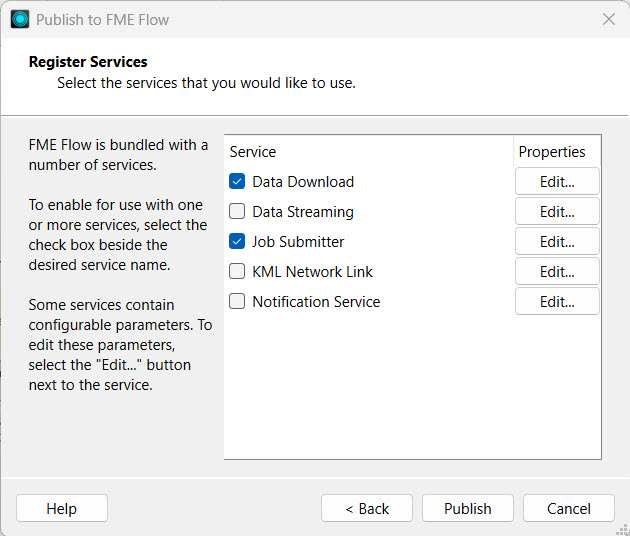
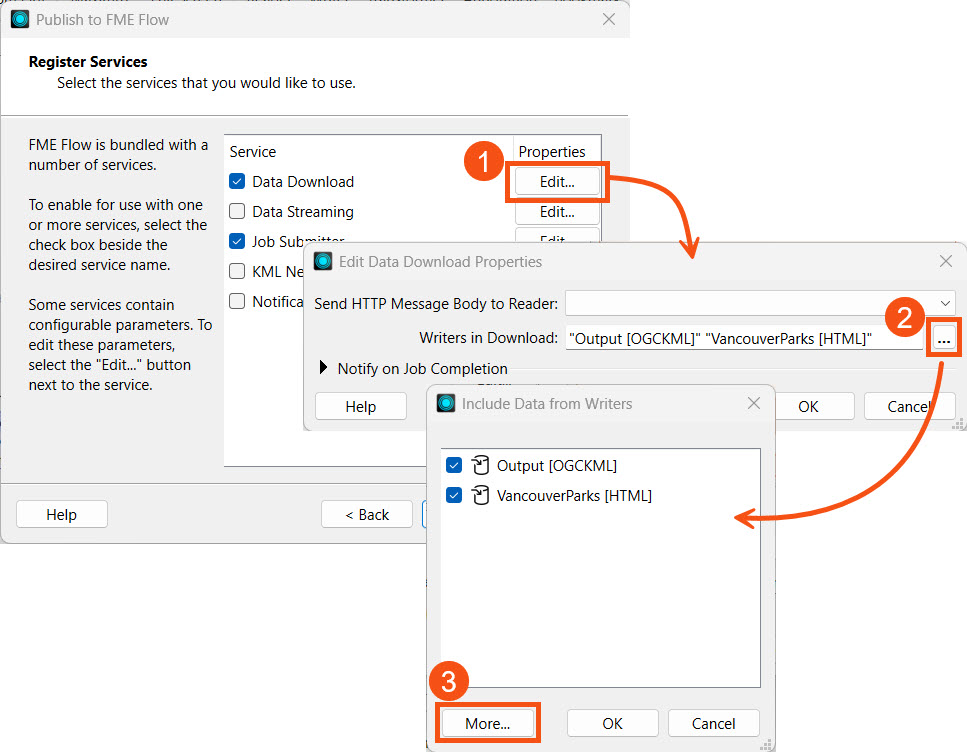
Register the workspace with the Data Download and Job Submitter services. Next to Data Download, click Edit. To modify the Writers in Download, click the ellipses button to open a selection list for the writers. Ensure both the OGCKML and HTML writers are selected, and then click More.
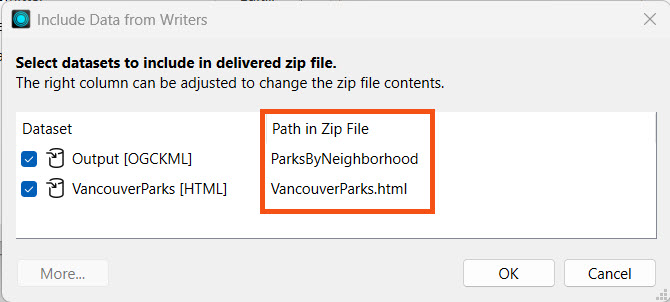
To customize the output folder structure, you will alter the Path in Zip File value for each dataset. For the KML output, configure the Output KML datasets to group into a folder called ParksByNeighborhood. Sven would like easy access to the HTML file, so it isn't nested in a folder. For the HTML File, remove the default folder and leave the file name as VancouverParks.html.
| Output [OGCKML] | ParksByNeighborhood |
| VancouverParks [HTML] | VancouverParks.html |
Click OK twice to close each window and return to the publishing wizard. From the Register Services page, click Publish to finish publishing the workspace to FME Flow.
If publishing fails, you might receive the following error message in the translation log:
Publish Failed - FME Flow encountered an error and reported the following message. Failed to publish item publish-a-workspace-to-fme-flow.fmw to repository Training. Reason was: The following readers or writers are included in an enabled service, but are not present in the workspace: [GML_1] Request to http://localhost/fmeapiv4/repositories/Training/items/upload?overwrite=true returned status code 422.
This is a known issue and renaming the workspace to a different name, such as deliver-data-on-demand.fmw, while publishing is the current and easiest workaround.
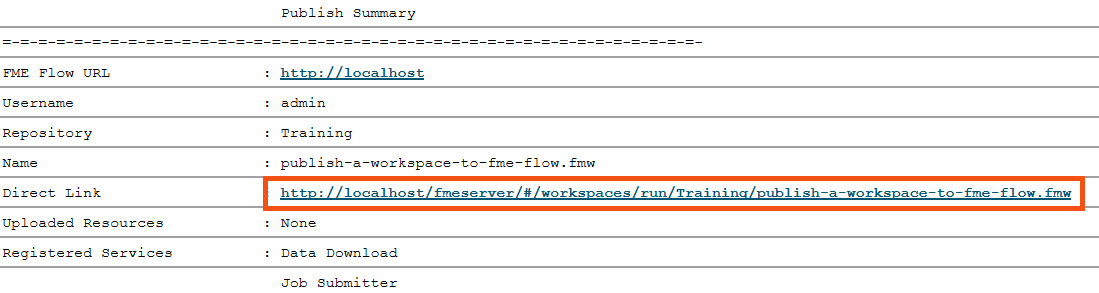
Check the translation log to ensure the workspace publishes successfully. Then, click the Direct Link URL to open the FME Flow Run Workspace page directly.
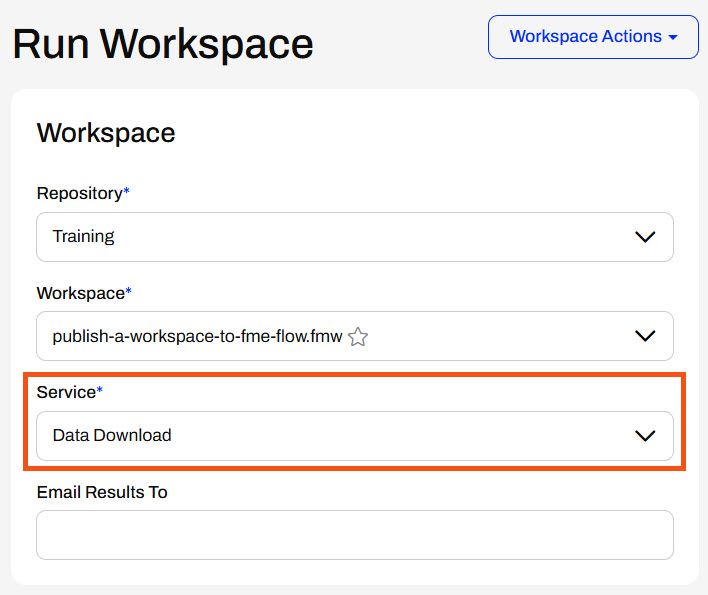
On the Run Workspace page, select Data Download as the service and click Run to submit the job.
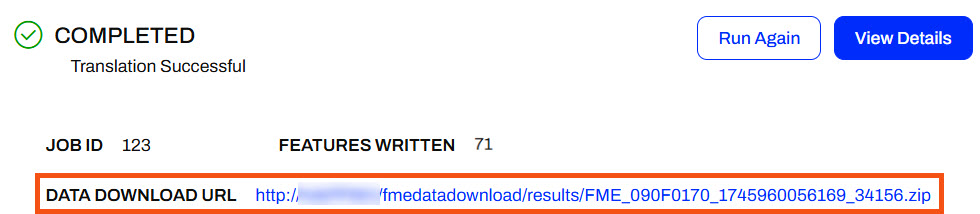
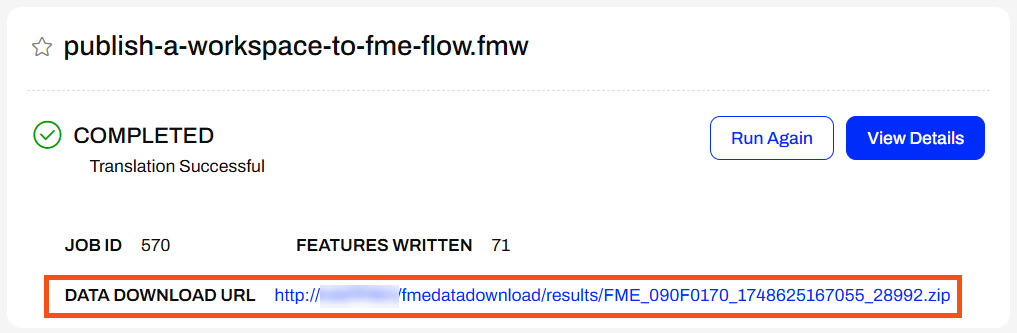
After FME Flow finishes the translation, click on the Data Download URL link, and the zip file downloads.
Navigate to your Downloads folder, then extract the zip file, and open its contents.
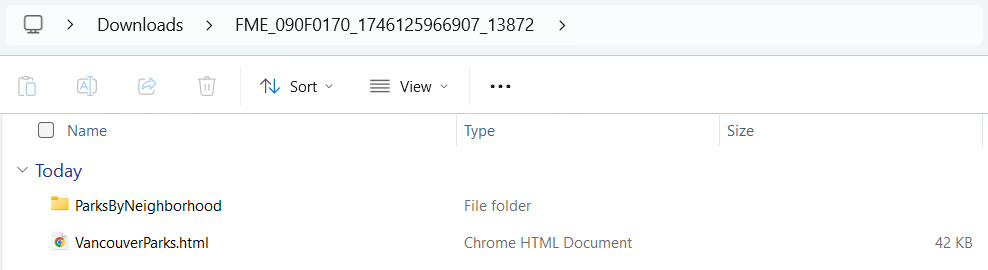
Now, you've run Sven's workspace using the Data Download service. With the Data Download service, Sven and his colleagues can access their data more quickly through the download URL than by having to remember and navigate to the output file location.
The Data Download service is one of the common FME Flow transformation services. The service allows you to download a workspace's output data after the workspace finishes running on FME Flow. Instead of writing the data to the location you set in the Writer, FME Flow packages the data into a zipped file and presents it to the user via a URL that links to the download. FME Flow uses a zip file to include multiple datasets in the output results and accommodate folder-based datasets containing multiple files.
When authoring the workspace in FME Workbench, you can specify and control which datasets to include in the results, the format of the data, and which coordinate system the data uses.
It is not possible to execute a data download on a workspace whose output destination is a database format. Data download can only be used with workspaces that write single or multiple files.
You can set and edit transformation services for a workspace directly in FME Flow or when publishing the workspace from FME Workbench.
When you publish to FME Flow from FME Workbench, you register the services for the workspace in the last step of the publishing process. To change a workspace's services from FME Workbench, you must complete the entire publishing process again; republishing a workspace does not alter the services from the settings used when you first published the workspace.
For workspaces already published to FME Flow, you may modify the services directly on FME Flow, which is easier than going through the entire publishing process again in FME Workbench. However, for the Data Download service, you can only edit the folder path structure of the data in the zipped folder when publishing.
By default, the data download folder structure in the zip file separates datasets by writer format as folder names. You may alter the Data Download zip file folder structure when publishing from FME Workbench.
Currently FME Flow does not support the ability to alter the data download folder structure from FME Flow and it must be done while publishing from FME Workbench.
Sven continues with his workspace, which filters Park data by neighborhood in Vancouver and produces KML output of Parks by neighborhood and an HTML summary report of the Parks. Sven recently learned about the Data Download service on FME Flow and thinks it will benefit his colleagues to access the Parks data output using his workspace.
He wants to publish his workspace again, register it with the Data Download service, and customize the path to the output zip file.
For this exercise, follow the steps below to configure Sven's workspace to use the Data Download service with a custom output zip file path and then run it on FME Flow.
Return to Sven's workspace in FME Workbench (C:\FMEData\Workspaces\DeployWorkflowsWithFMEFlow\publish-a-workspace-to-fme-flow.fmw).
Click Publish on the top toolbar to open the publishing wizard. Select the Training repository, and optionally change the workspace name, and click Next.
Register the workspace with the Data Download and Job Submitter services. Next to Data Download, click Edit. To modify the Writers in Download, click the ellipses button to open a selection list for the writers. Ensure both the OGCKML and HTML writers are selected, and then click More.
To customize the output folder structure, you will alter the Path in Zip File value for each dataset. For the KML output, configure the Output KML datasets to group into a folder called ParksByNeighborhood. Sven would like easy access to the HTML file, so it isn't nested in a folder. For the HTML File, remove the default folder and leave the file name as VancouverParks.html.
| Output [OGCKML] | ParksByNeighborhood |
| VancouverParks [HTML] | VancouverParks.html |
Click OK twice to close each window and return to the publishing wizard. From the Register Services page, click Publish to finish publishing the workspace to FME Flow.
If publishing fails, you might receive the following error message in the translation log:
Publish Failed - FME Flow encountered an error and reported the following message. Failed to publish item publish-a-workspace-to-fme-flow.fmw to repository Training. Reason was: The following readers or writers are included in an enabled service, but are not present in the workspace: [GML_1] Request to http://localhost/fmeapiv4/repositories/Training/items/upload?overwrite=true returned status code 422.
This is a known issue and renaming the workspace to a different name, such as deliver-data-on-demand.fmw, while publishing is the current and easiest workaround.
Check the translation log to ensure the workspace publishes successfully. Then, click the Direct Link URL to open the FME Flow Run Workspace page directly.
On the Run Workspace page, select Data Download as the service and click Run to submit the job.
After FME Flow finishes the translation, click on the Data Download URL link, and the zip file downloads.
Navigate to your Downloads folder, then extract the zip file, and open its contents.
Now, you've run Sven's workspace using the Data Download service. With the Data Download service, Sven and his colleagues can access their data more quickly through the download URL than by having to remember and navigate to the output file location.
